

Sportzfy Buffering & Lag: 9 Fixes That Work
Buffering is the single most common Sportzfy complaint, and it is usually fixable — but not with the random tips most pages list. The truthful starting point: Sportzfy links to third-party streams, so a stutter can come from your connection, your device, the app, or the source itself, and each cause has a different fix. Work through these nine in order; the sequence goes from the most common cause to the least, and most people stop needing the list by fix three or four. For problems that are not buffering — crashes, blank screens, links that will not open at all — see our general Sportzfy not working fixes.
Fix 1: Rule Your Connection In or Out
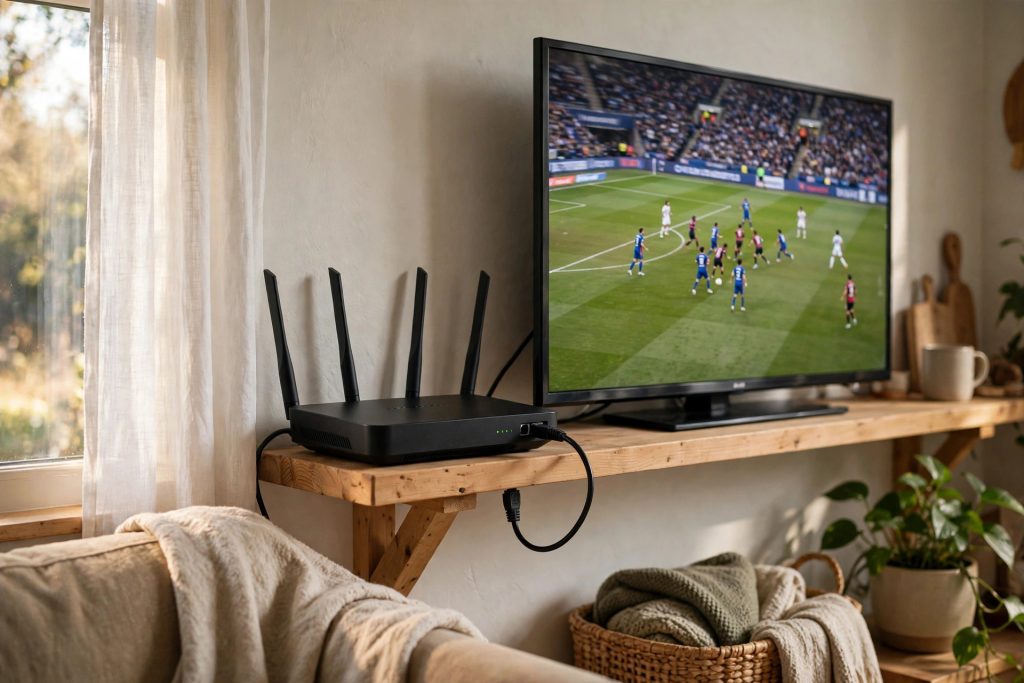
Before touching the app, test the connection honestly. Open a video on another app on the same device and network. If that stutters too, the problem is your network, not Sportzfy: restart the router (off for 30 seconds), move closer to it, and if your router offers both bands, prefer the 5 GHz band at short range for speed, or 2.4 GHz if you are watching through walls — 5 GHz is faster but weaker through obstacles. Live streams also expose connections that feel fine for browsing: a connection can load pages happily and still drop the steady throughput a live feed needs, particularly at peak evening hours.
Fix 2: Switch the Stream Link
Every event in Sportzfy usually lists more than one link, because the app aggregates sources. Those sources are not equal — one may be overloaded while another runs cleanly. If a stream buffers, back out and pick the next link for the same event before changing anything else. This is the fix that resolves the largest share of “it buffers” reports on big match days, when the most obvious link is the one everyone else chose too.
Fix 3: Lower the Stream Quality One Notch
If the player offers quality options, drop one level — from the highest to the next down. The visual difference on a phone screen is small; the data difference is large. A stream that cannot sustain top quality will run continuously one notch lower, which beats a beautiful picture that stops every twenty seconds. On a TV the drop is more visible, so treat this as the diagnostic as much as the cure: if one notch down plays perfectly, your connection or the source was the limit, not the app.
Fix 4: Clear the App’s Cache
Over weeks of use, cached data bloats and can corrupt. Go to Settings → Apps → Sportzfy → Storage → Clear cache (cache only — not “Clear data”, which also resets the app). Restart the app afterwards. This is a standard Android remedy, it costs you nothing, and it fixes a surprising amount of gradually-getting-worse playback.
Fix 5: Close Everything Else
On phones and especially on streaming sticks, Sportzfy competes for memory and bandwidth with whatever else is alive: downloads running in the background, other streaming apps left open, cloud backups syncing. Close background apps, pause downloads, and on a FireStick restart the stick itself (Settings → My Fire TV → Restart) — sticks that stay on for months at a time accumulate exactly the sluggishness that shows up as buffering. More on TV setup in our FireStick & Android TV guide.
Fix 6: Check Whether a VPN Is the Bottleneck
A VPN adds a detour to every packet. If you use one, test the same stream with it disconnected, and also test a different VPN server location if you prefer to stay connected. A slow or overloaded VPN server is a classic hidden cause of buffering that gets blamed on the app — and a fast one can occasionally help if your provider is throttling streaming traffic, which is why the honest advice is to test both ways rather than assume.
Fix 7: Update the App
Old versions gradually lose their best sources as stream addresses change, and the symptom looks exactly like a buffering problem: the first links fail or crawl, and only persistence finds a working one. Check the version on our homepage against yours and update if you are behind — the in-place routine is in our how to update Sportzfy guide, and it preserves your setup.
Fix 8: Restart the Device (Properly)
Not sleep — a full restart. Phones and TVs that only ever sleep accumulate memory pressure and stale network states. A restart clears both, takes a minute, and is the oldest advice in computing because it keeps working. If buffering survives a restart on a healthy connection with a fresh link, the cause is almost certainly the source itself.
Fix 9: Accept When It Is the Source — and Route Around It
Champions League nights and World Cup matches overload popular free sources in a way no setting fixes. When every link for one event buffers while other events play fine, that is the answer: the event’s sources are saturated. Your options are to start the stream early (before the rush), watch at the lower quality that the source can sustain, or switch to a backup app for that event — our alternatives guide exists for exactly this.
Symptom → Likely Cause → Fix
| Symptom | Likely cause | Start with |
|---|---|---|
| Buffers on one link, fine on another | Overloaded source | Fix 2 — switch link |
| Buffers on everything, other apps too | Your connection | Fix 1 — router, band, distance |
| Perfect at low quality, stalls at high | Throughput limit (yours or the source’s) | Fix 3 — stay one notch down |
| Got worse over weeks | Cache bloat / ageing app version | Fix 4, then Fix 7 |
| Only on the TV stick, phone is fine | Stick memory/storage pressure | Fix 5 — restart the stick, clear space |
| Only when VPN is on | VPN server speed | Fix 6 — test both ways |
Frequently Asked Questions
How fast does my internet need to be for Sportzfy?
As a rough guide, standard-definition streams run on a few megabits per second and HD needs more headroom — but stability matters more than the headline number. A steady slower connection beats a fast one that keeps dropping, which is why Fix 1 tests the real behaviour rather than a number.
Why does buffering get worse during big matches?
Because the free sources everyone shares get crowded. The app, your phone and your connection are unchanged — the supply side is saturated. Starting early and dropping one quality notch are the practical answers.
Will clearing data fix buffering better than clearing cache?
No — clear cache first. Clear data also wipes the app’s local settings and favourites, and adds nothing for playback problems. Save it for crashes and corrupted installs.
Does an Ethernet adapter help on FireStick?
Yes, if Wi-Fi is your weak link. A wired connection removes distance and interference from the equation entirely, and it is the single most effective hardware fix for TV buffering.
Why does the stream freeze at the same point every time I replay it?
That pattern points at the source or a corrupted cache rather than your connection — try a different link for the event, then clear the cache (Fix 4) if the freeze follows you between links.


